

What you’re setting up (quick mental model)
- Your Agent37 instance runs OpenClaw and exposes the Web Chat UI on port 18789.
- Tailscale gives the instance a private, routable Tailnet IP (100.x.x.x).
- You open the Web Chat from your laptop at
http://<instance-tailscale-ip>:18789/ - You must whitelist that browser origin in
openclaw.jsonviagateway.controlUi.allowedOrigins - You authenticate to the gateway using
gateway.auth.token
Video walkthrough
What this setup does
Tailscale gives each approved device a private tailnet IP, usually in the100.x.x.x range. Once the OpenClaw host is reachable through that network, you can open Web Chat from another approved device on the same tailnet.
Prerequisites
- An Agent37 instance you can open a terminal into
- A Tailscale account (Google/GitHub/Microsoft/email login)
- Tailscale installed on your laptop (signed into the same Tailnet)
Part A: Install + sign in to Tailscale on macOS
Step 1: Download
- Go to https://tailscale.com/download
- Download Tailscale for Mac (a
.pkginstaller)
Step 2: Install
- Open the downloaded
.pkg - Follow the prompts (Continue → Install)
- Enter your Mac password if prompted
Step 3: Sign in
- Open Tailscale (Applications → Tailscale)
- Click Sign in
- Complete authentication in your browser
- Authorize your device
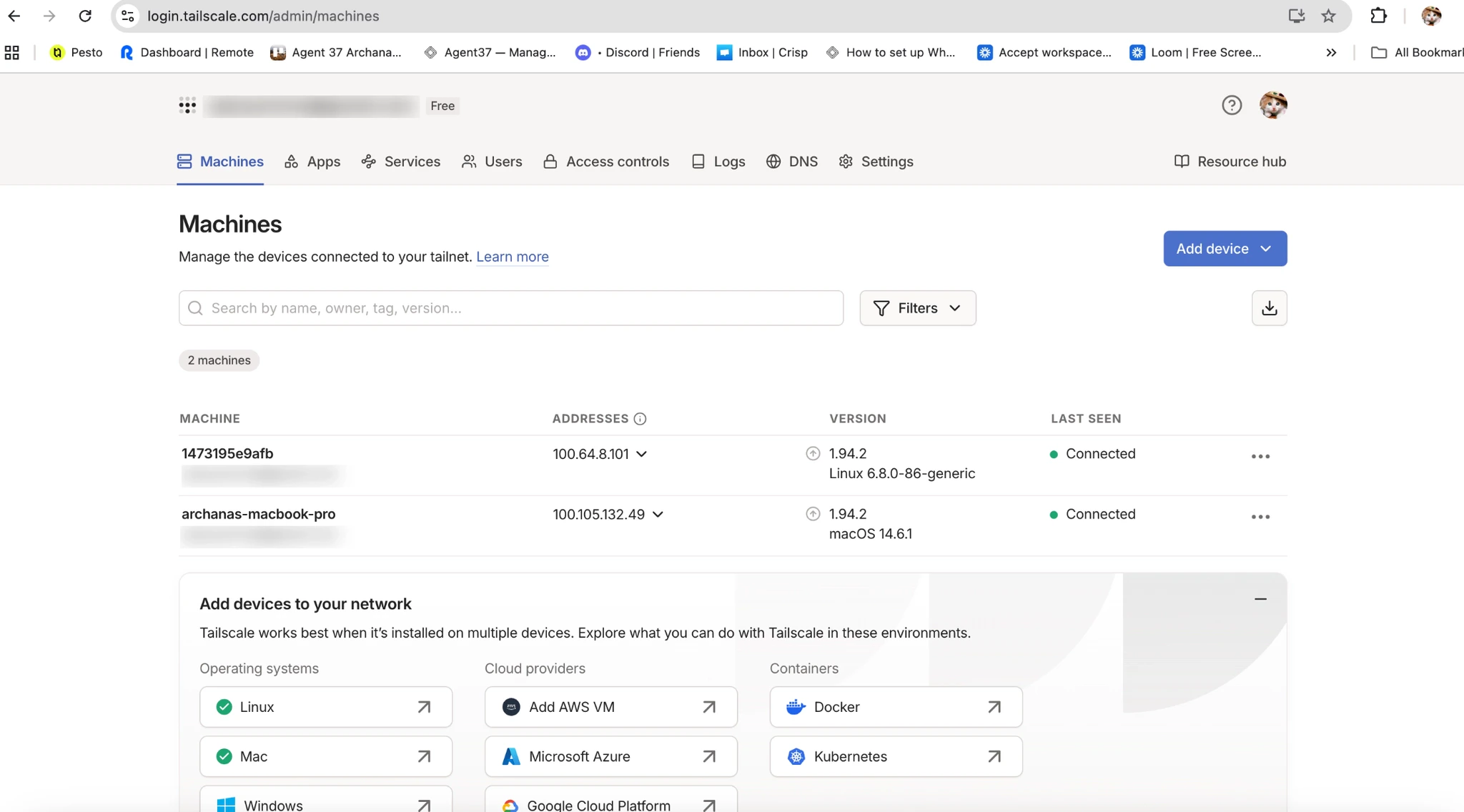
- Toggle Tailscale On You’ll see:
- Status: Connected
- Your Tailscale IP (100.x.x.x)
Step 4: Confirm it’s working
- In the Tailscale app, verify the status shows Connected
- Note your laptop’s Tailscale IP (100.x.x.x)
Part B: Connect your Agent37 instance to Tailscale
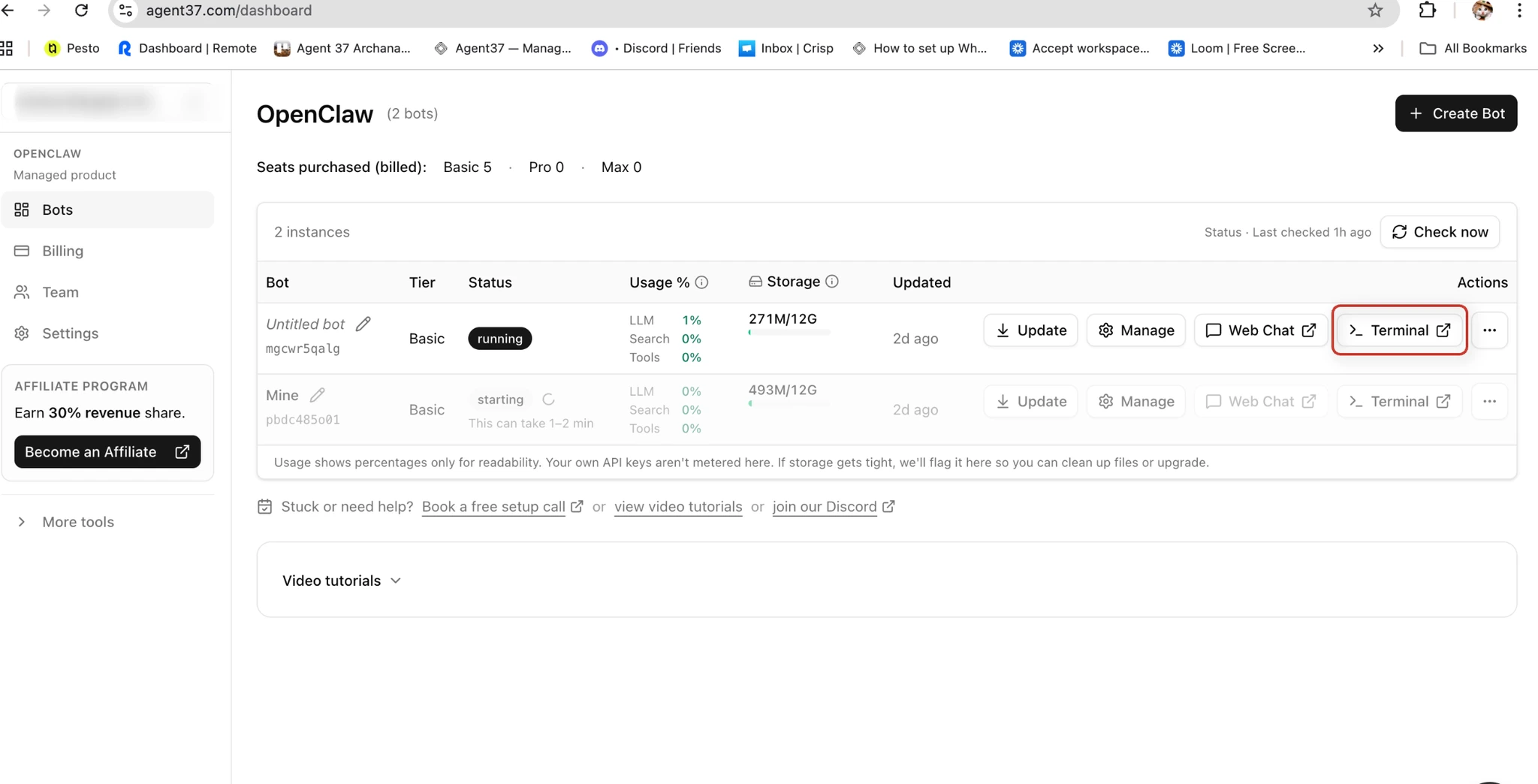
Step 1: Open the Agent37 terminal
- Go to https://www.agent37.com/dashboard
- Create an instance (or open an existing one)
- Open Terminal for that instance
Step 2: Install Tailscale on the instance
Run:Step 3: Start the Tailscale Daemon Automatically in the Background
if you access OpenClaw Web Chat using a Tailscale IP, you may find yourself manually starting tailscaled every time your instance restarts. To avoid that extra step, add the Tailscale daemon command topost-restart.sh so it runs automatically in the background.
Open post-restart.sh
post-restart.sh
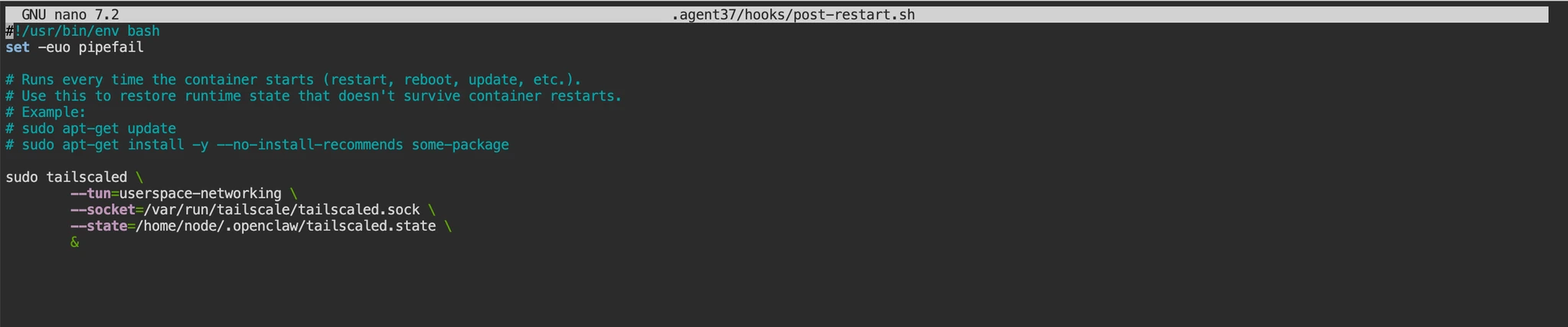
Ctrl + Oto write out/save- Press
Enterto confirm the filename Ctrl + Xto exit
Ctrl + X first and it asks to save, press Y, then Enter
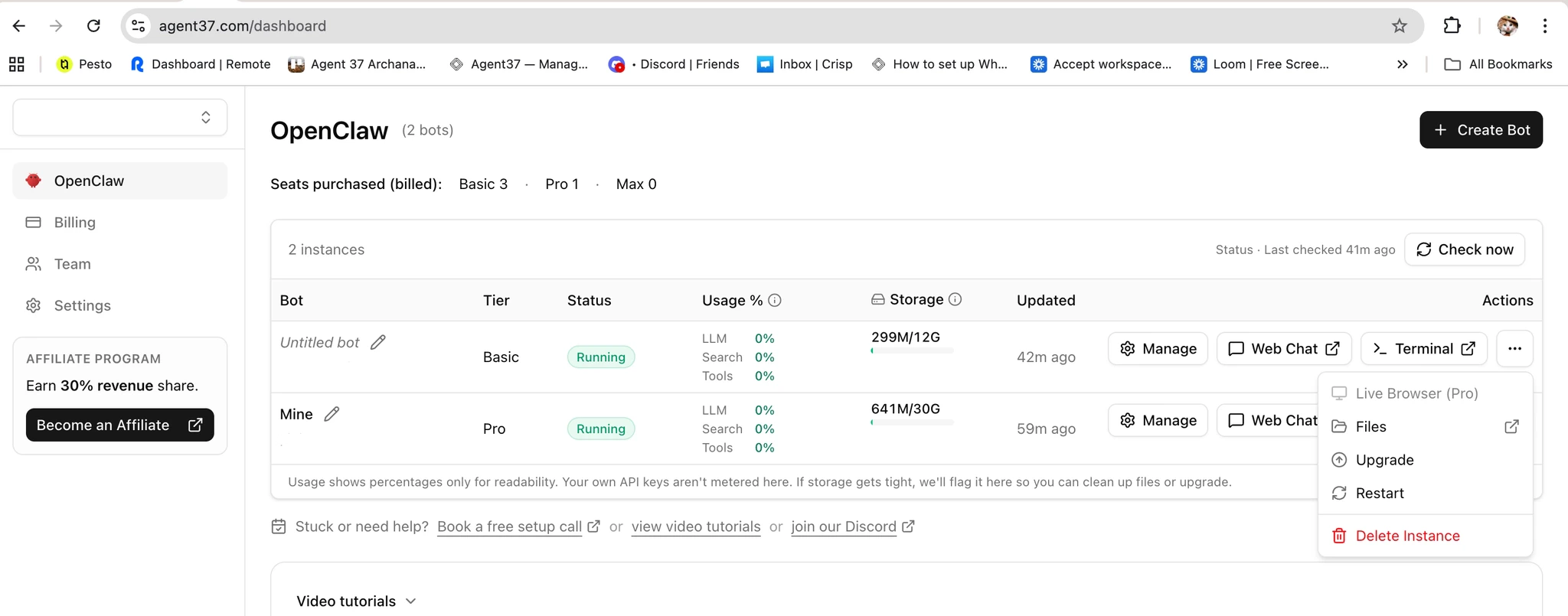
Restart your OpenClaw instance
After saving the file, restart your OpenClaw instance from the Agent37 dashboard.
Why this helps
Adding this command topost-restart.sh makes startup smoother:
- You no longer need to manually start tailscaled each time.
- The Tailscale daemon keeps running in the background.
- OpenClaw Web Chat continues to work with the same Tailscale IP flow.
Step 4: Bring Tailscale up (authenticate)
Open the Terminal and Run:https://login.tailscale.com/a/xxxxx.
- Open that URL in your browser
- Sign in to the same Tailscale account/Tailnet as your laptop
Step 5: Verify the instance is online and get its Tailnet IP
Run:allowedOrigins.
Part C: Whitelist the Web Chat origin + copy the gateway token
This step prevents browser-origin/CORS blocks and ensures only allowed origins can open the control UI.Step 1: Open openclaw.json
- Go to https://www.agent37.com/dashboard
- Open your instance
- Go to Actions → Files
- Open
openclaw.json
Step 2: Add your Web Chat origin to allowedOrigins
Add the instance’s Tailscale IP with port 18789.
- Use the same scheme you will use in the browser (typically
http://). - The origin must match exactly: scheme + host + port.
Step 3: Copy the gateway token
Copygateway.auth.token. You’ll paste it into Web Chat when prompted.
Part D: Open Web Chat from your laptop
Step 1: Confirm both devices are on the same Tailnet
- Laptop: Tailscale is On and shows Connected
- Instance: shows online in
tailscale status
Step 2: Open the Web Chat URL
In your browser, open:http://<instance-tailscale-ip>:18789/
http://100.90.12.5:18789/
Step 3: Authenticate in the Web Chat UI
When prompted, paste the token fromopenclaw.json → gateway.auth.token
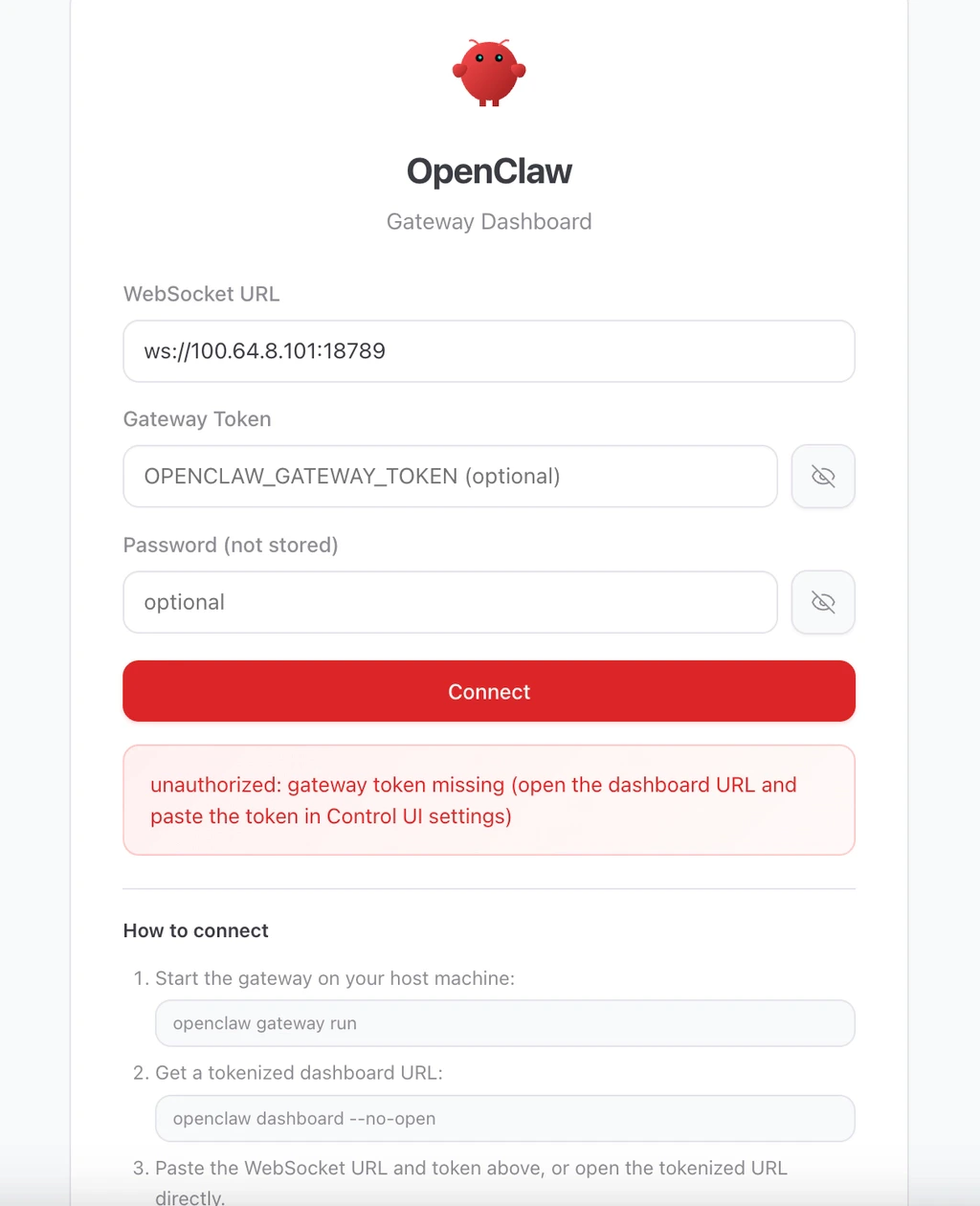
Step 4: Validate it works
- Click Connect (you should see a connected state)
- Send a test message in the chat box
- Confirm that your OpenClaw bot responds normally
Troubleshooting
Page doesn’t load
- Confirm the instance is online:
tailscale status - Confirm you used the correct instance IP (100.x.x.x)
- Confirm you included the port:
:18789
“Origin not allowed” / CORS issues
- Ensure
gateway.controlUi.allowedOriginsincludes the exact origin you opened:http://100.x.x.x:18789(scheme + IP + port must match)
- If you changed the IP (new instance) or changed ports, update
allowedOriginsaccordingly
Token rejected
- Make sure you copied
gateway.auth.token(not another token) - Re-open
openclaw.jsonand re-copy (avoid hidden whitespace)
Instance appears offline
- Re-run:
sudo tailscaled ... &(if the daemon isn’t running)sudo tailscale up(if the node isn’t authenticated)
Multiple accounts / devices
- Laptop and instance must be signed into the same Tailnet/account in Tailscale
When to use this setup
This setup is a good fit when you want:- secure remote access without exposing a public port
- access to Web Chat from another laptop or mobile device
- a simple private-network workflow for testing OpenClaw