> ## Documentation Index
> Fetch the complete documentation index at: https://www.agent37.com/docs/llms.txt
> Use this file to discover all available pages before exploring further.
# Claude API
> Set up OpenClaw with a Claude API key in Agent 37
Follow the steps below or watch the video.
## Video walkthrough
**Prerequisites**:
* An active [Agent 37 account](https://www.agent37.com/dashboard)
* A running OpenClaw instance in Agent 37
* An [Anthropic Console](https://console.anthropic.com) account
* A valid Claude API key
## Step 1: Create your Claude API key
1. Go to the [Anthropic Console](https://console.anthropic.com) and sign in.
2. In the left sidebar, open **Manage** > **API Keys**.
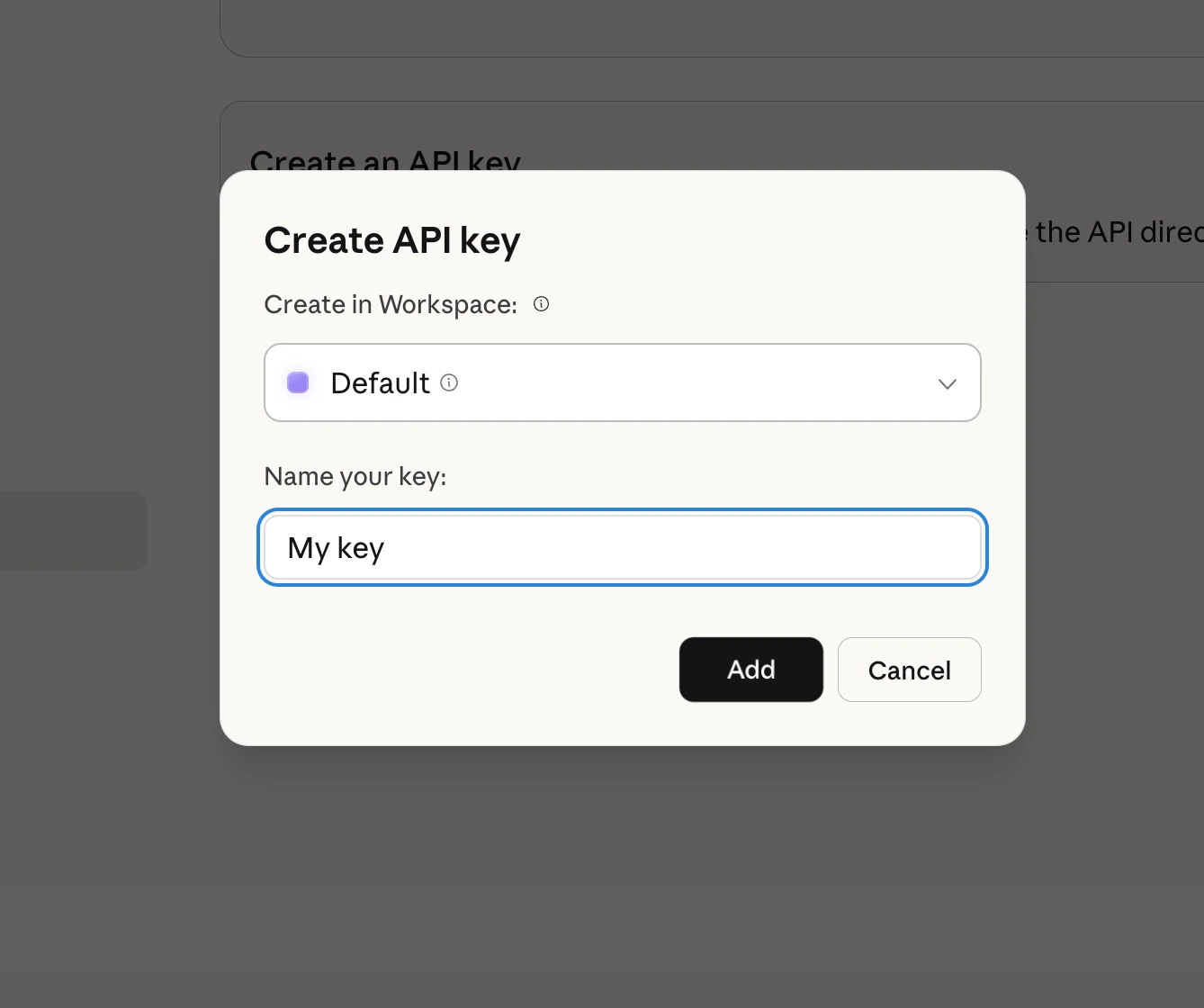
3. Click **Create Key**.
4. When prompted:
* Select the workspace
* Enter a name for the key
* Click **Add**
5. Copy the generated key.
Claude API keys typically look like:
```text theme={null}
sk-ant-xxxx...
```
Keep this key private. Anyone with the key can use your Anthropic account and consume usage.
## Step 2: Open your Agent 37 instance
1. Go to the [Agent 37 dashboard](https://www.agent37.com/dashboard) and sign in.
2. Open an existing instance, or create a new one.
3. Open **Terminal**.
## Step 3: Configure OpenClaw to use Anthropic
In Terminal, run:
```bash theme={null}
openclaw configure
```
When prompted, choose the following:
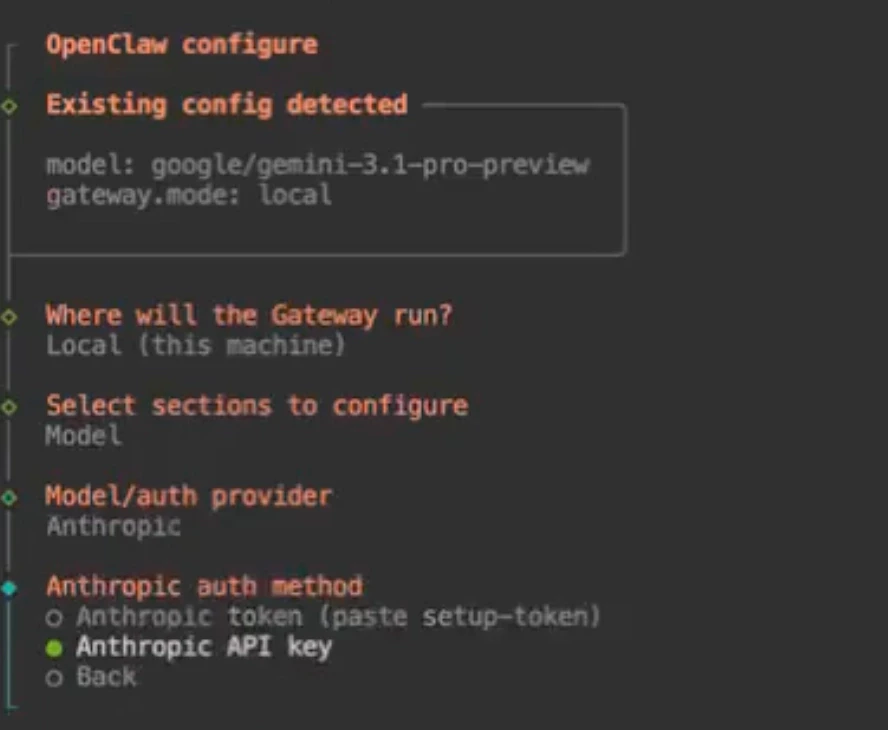
1. **Where will the gateway run?** → `Local`
2. **Select Section to Configure?** → `Mode`
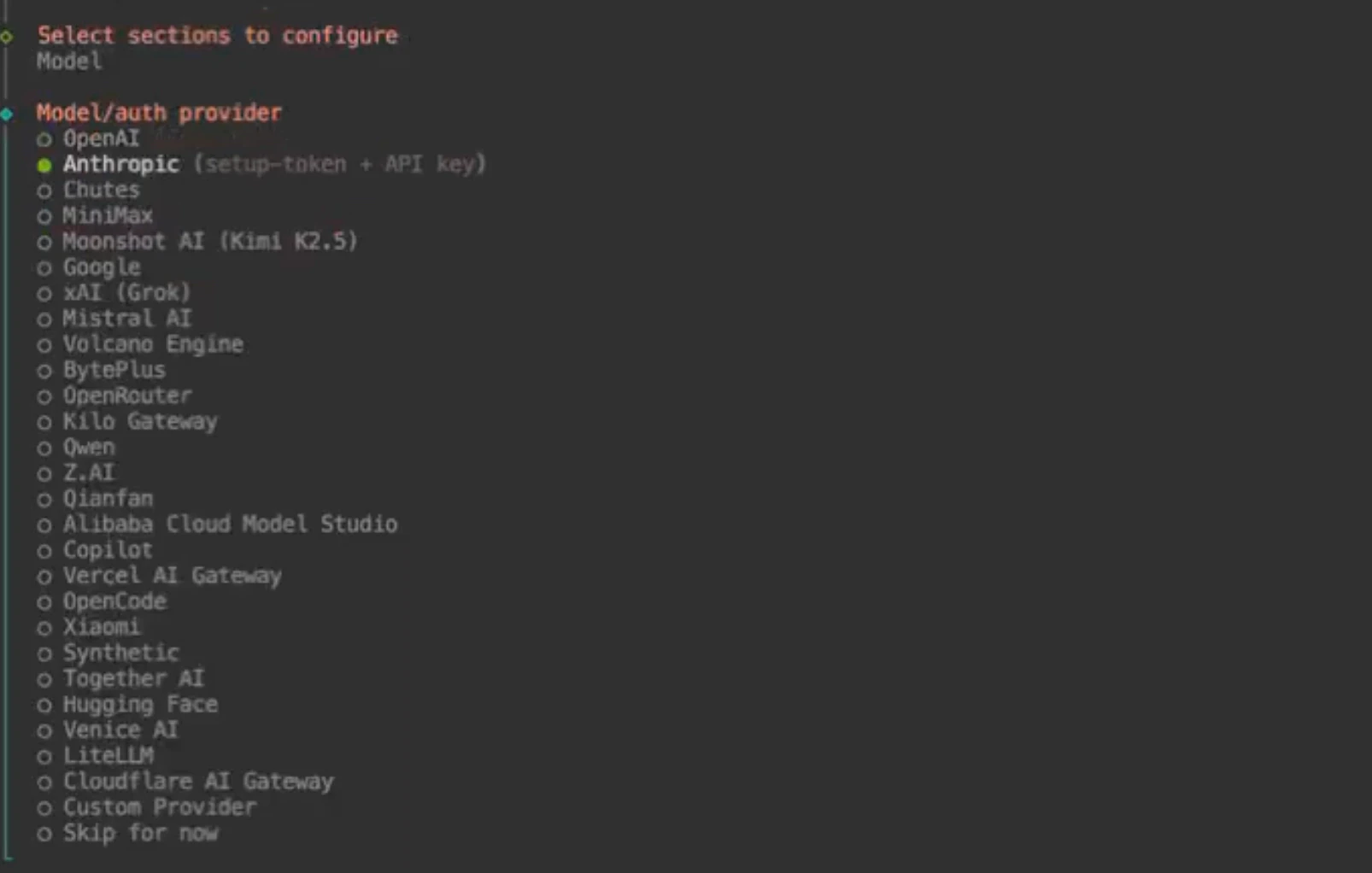
3. **Model / Auth Provider** → `Anthropic`
4. **Anthropic Auth Model** → `Anthropic API Key`
5. **How do you want to provide this API key now?** → `Paste API key now`
6. **Enter Anthropic API key** → paste the key you copied in Step 1
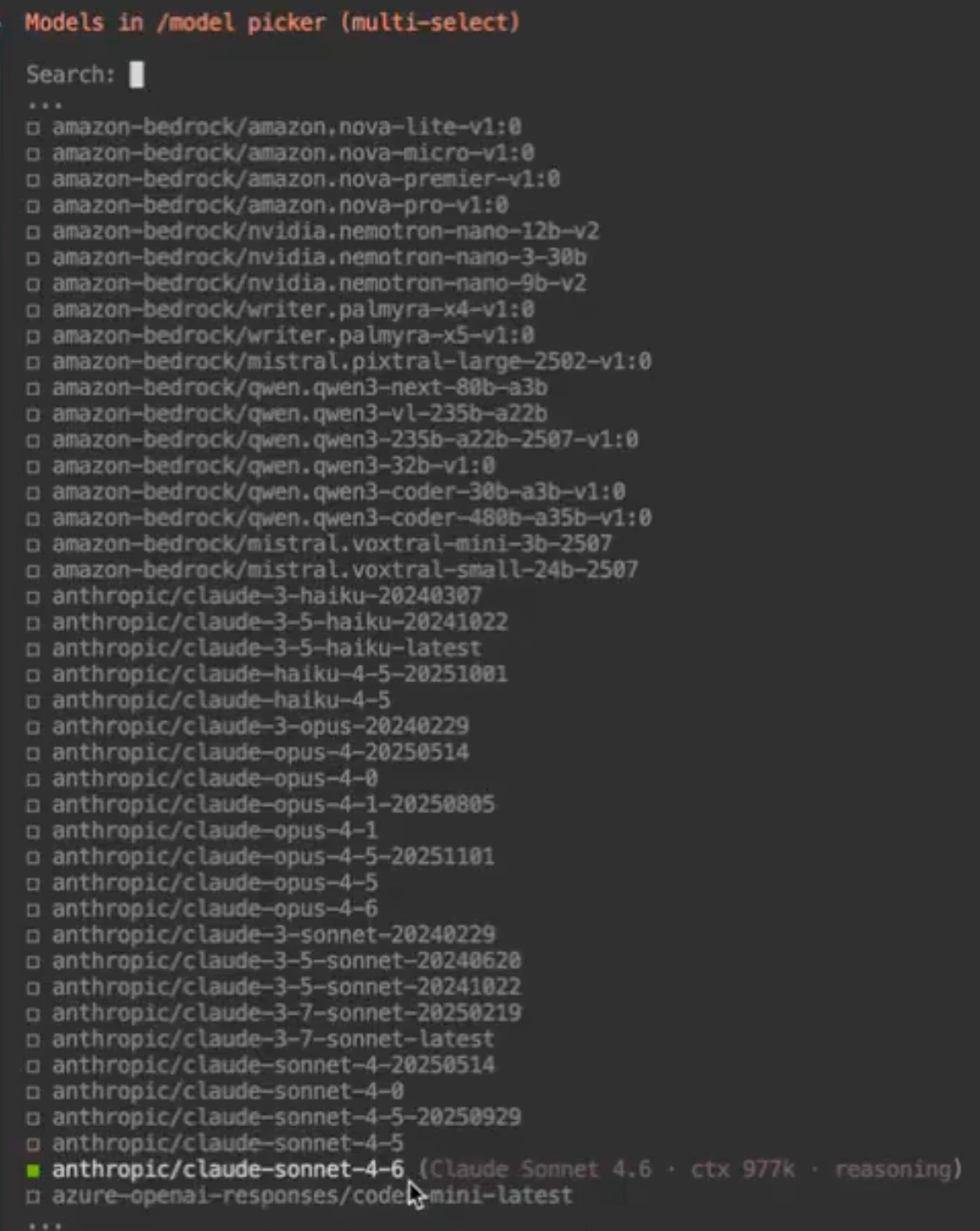
7. **Models in /models picker** → choose the model you want to use, for example `anthropic/claude-sonnet-4-6`
8. After selecting the model, choose `Continue`
If you are not sure which model to choose, start with a Claude Sonnet model. It is usually a strong default for general OpenClaw workflows.
## Step 4: Verify the configured model
Run:
```bash theme={null}
openclaw models list
```
You should see the model you selected marked as the default in the output.
## What to do next
Once Claude is configured, you can:
* connect a channel like WhatsApp or Telegram
* test your bot in Web Chat
* continue tuning prompts and provider settings
Browse the available channels, models, and networking guides.
Compare the OpenAI setup flow with the Claude configuration flow.

 Claude API keys typically look like:
```text theme={null}
sk-ant-xxxx...
```
Claude API keys typically look like:
```text theme={null}
sk-ant-xxxx...
```
 2. **Select Section to Configure?** → `Mode`
 3. **Model / Auth Provider** → `Anthropic`
 4. **Anthropic Auth Model** → `Anthropic API Key`
 5. **How do you want to provide this API key now?** → `Paste API key now`
 6. **Enter Anthropic API key** → paste the key you copied in Step 1
 7. **Models in /models picker** → choose the model you want to use, for example `anthropic/claude-sonnet-4-6`
 8. After selecting the model, choose `Continue`

 ## What to do next
Once Claude is configured, you can:
* connect a channel like WhatsApp or Telegram
* test your bot in Web Chat
* continue tuning prompts and provider settings
## What to do next
Once Claude is configured, you can:
* connect a channel like WhatsApp or Telegram
* test your bot in Web Chat
* continue tuning prompts and provider settings