> ## Documentation Index
> Fetch the complete documentation index at: https://www.agent37.com/docs/llms.txt
> Use this file to discover all available pages before exploring further.
# Telegram
> How to configure Telegram Bot for OpenClaw
In this tutorial, you will learn how to configure a Telegram bot and connect it with OpenClaw.
Follow the steps below or watch the full video tutorial.
## Video walkthrough
### Prerequisites
* An Agent37 account and an OpenClaw instance
* Access to the instance **Terminal**
### Step 1: Create a Telegram bot (BotFather)
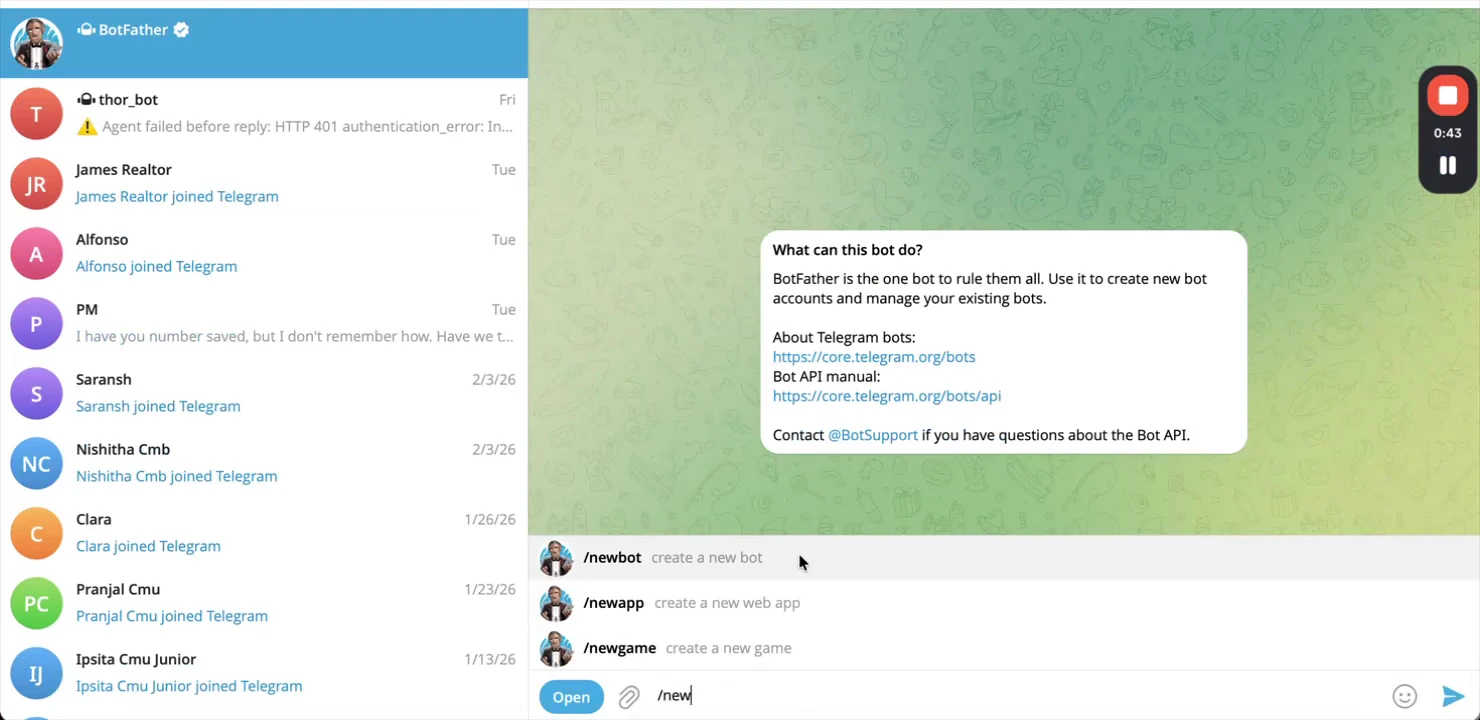
1. Open Telegram and search for **@BotFather**.
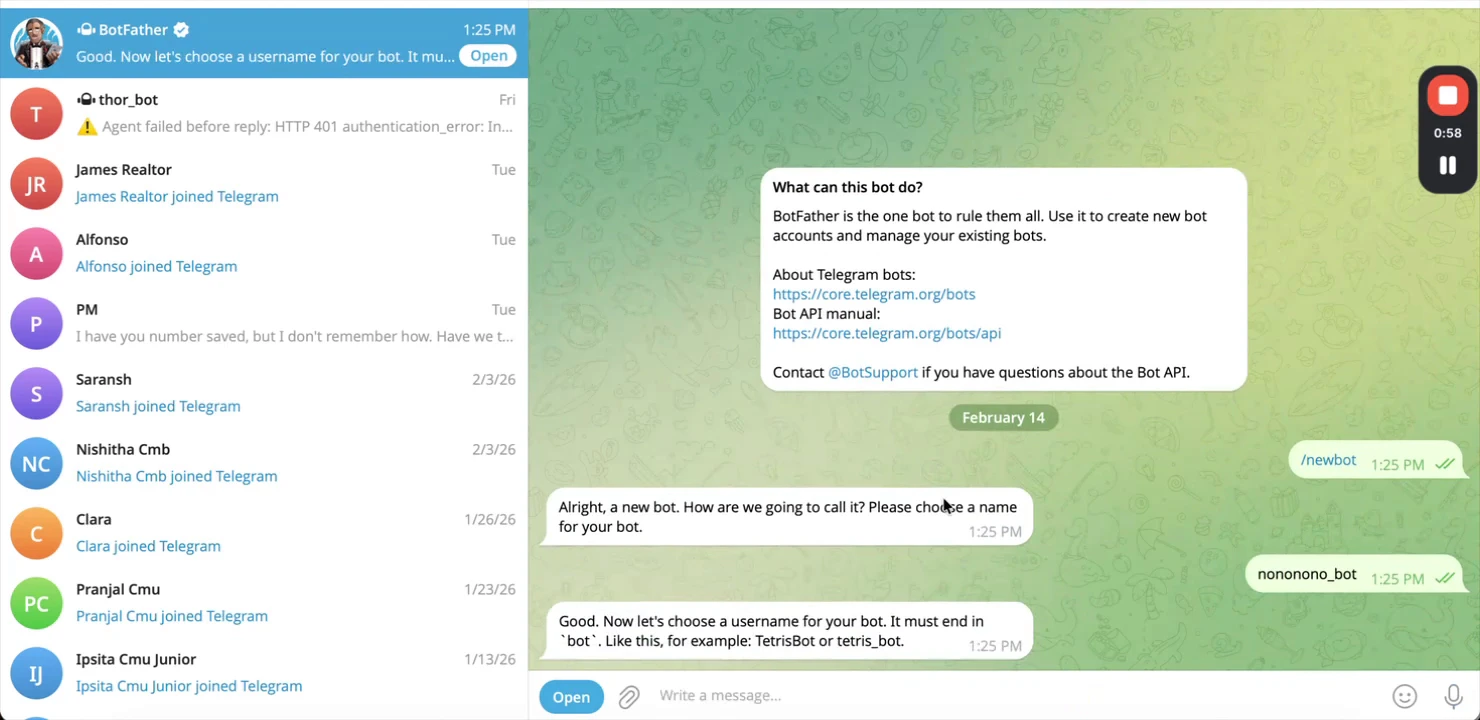
2. Start a chat and send `/newbot`.
* Give your bot a name (e.g., “My OpenClaw Assistant”).
* Give it a username (must end in `bot`, e.g., `my_openclaw_assistant_bot`).
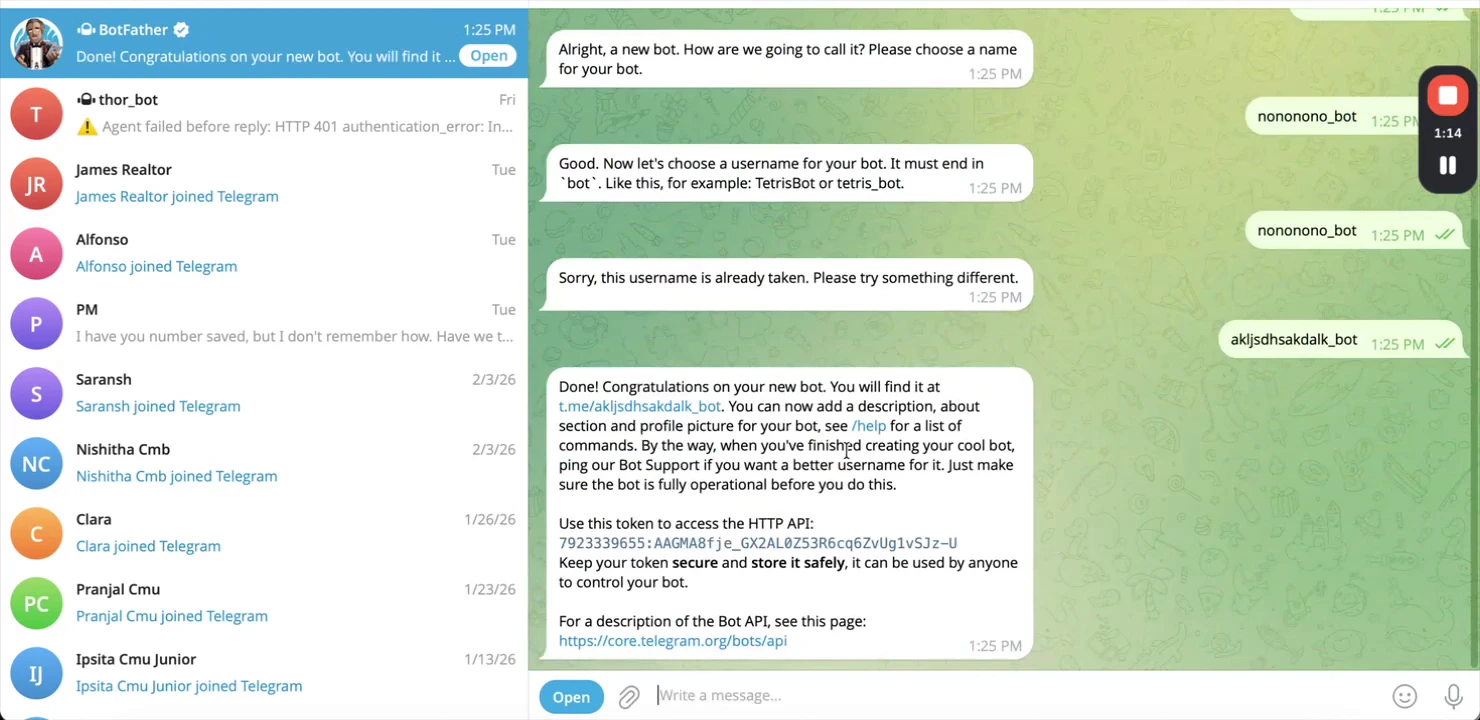
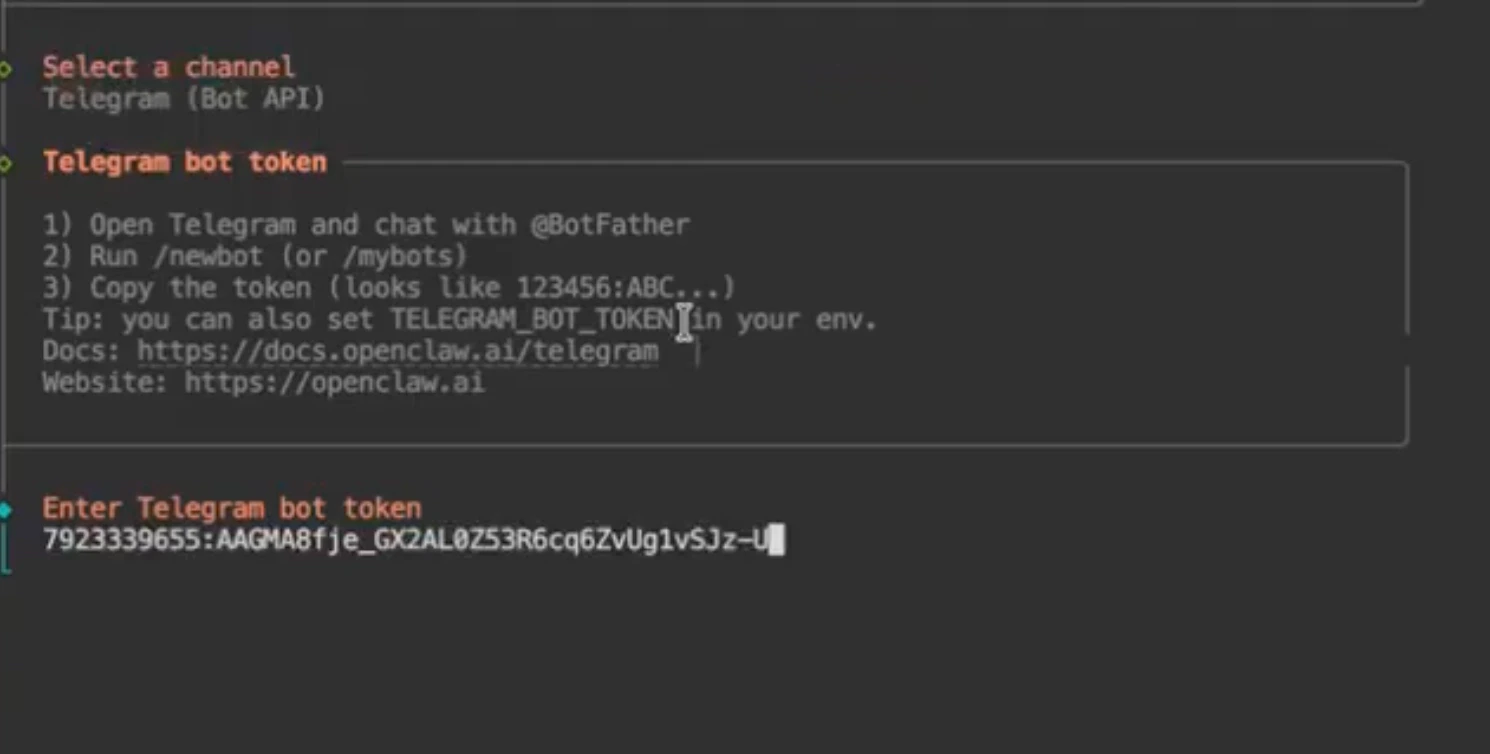
3. Copy the **Bot Token** BotFather returns.
* This token is your API key. **Keep it secret**.
### Step 2: Open the Agent37 Terminal
1. Go to the Agent37 dashboard: [https://www.agent37.com/dashboard](https://www.agent37.com/dashboard)
2. Create an instance (or open an existing one).
3. Open **Terminal**.
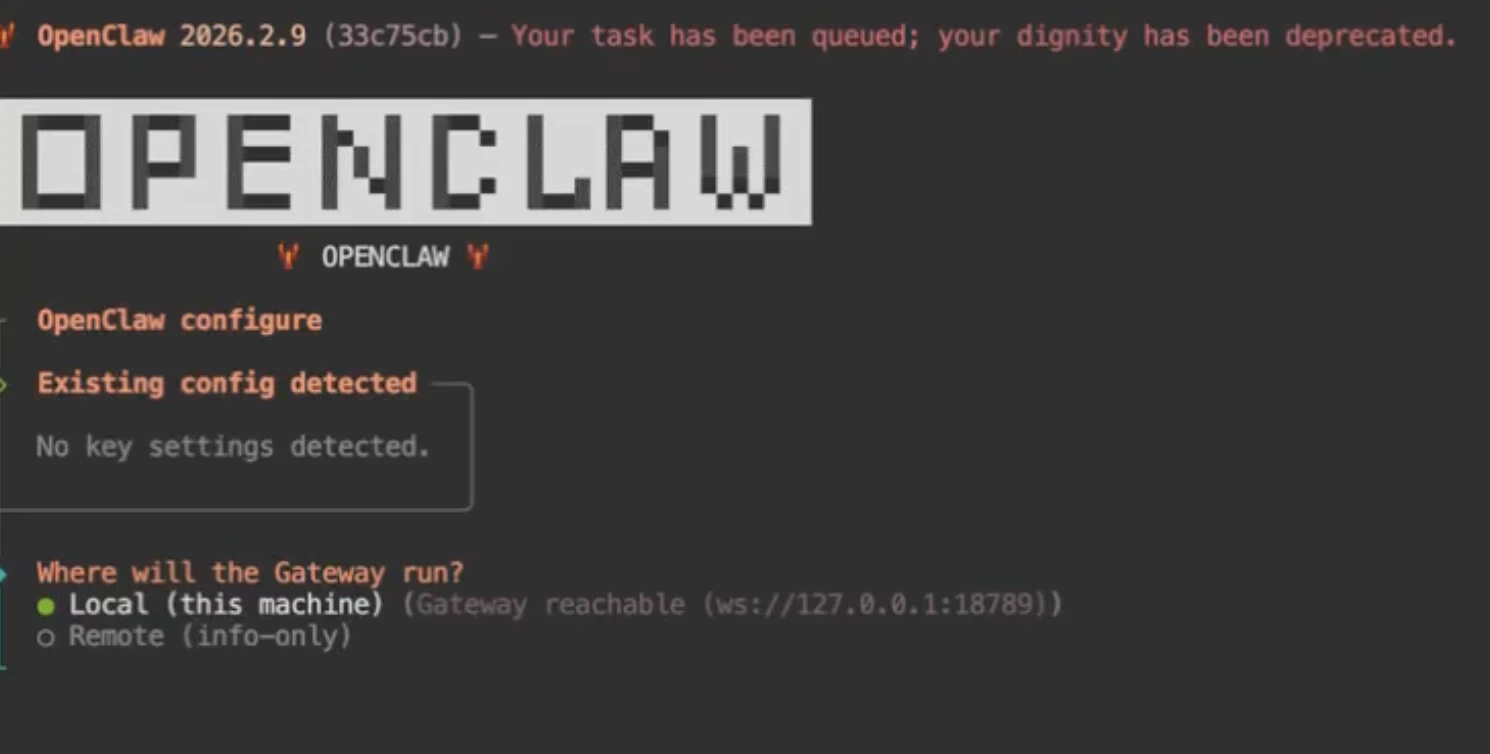
### Step 3: Configure OpenClaw to use Telegram
Run:
```text theme={null}
openclaw configure
```
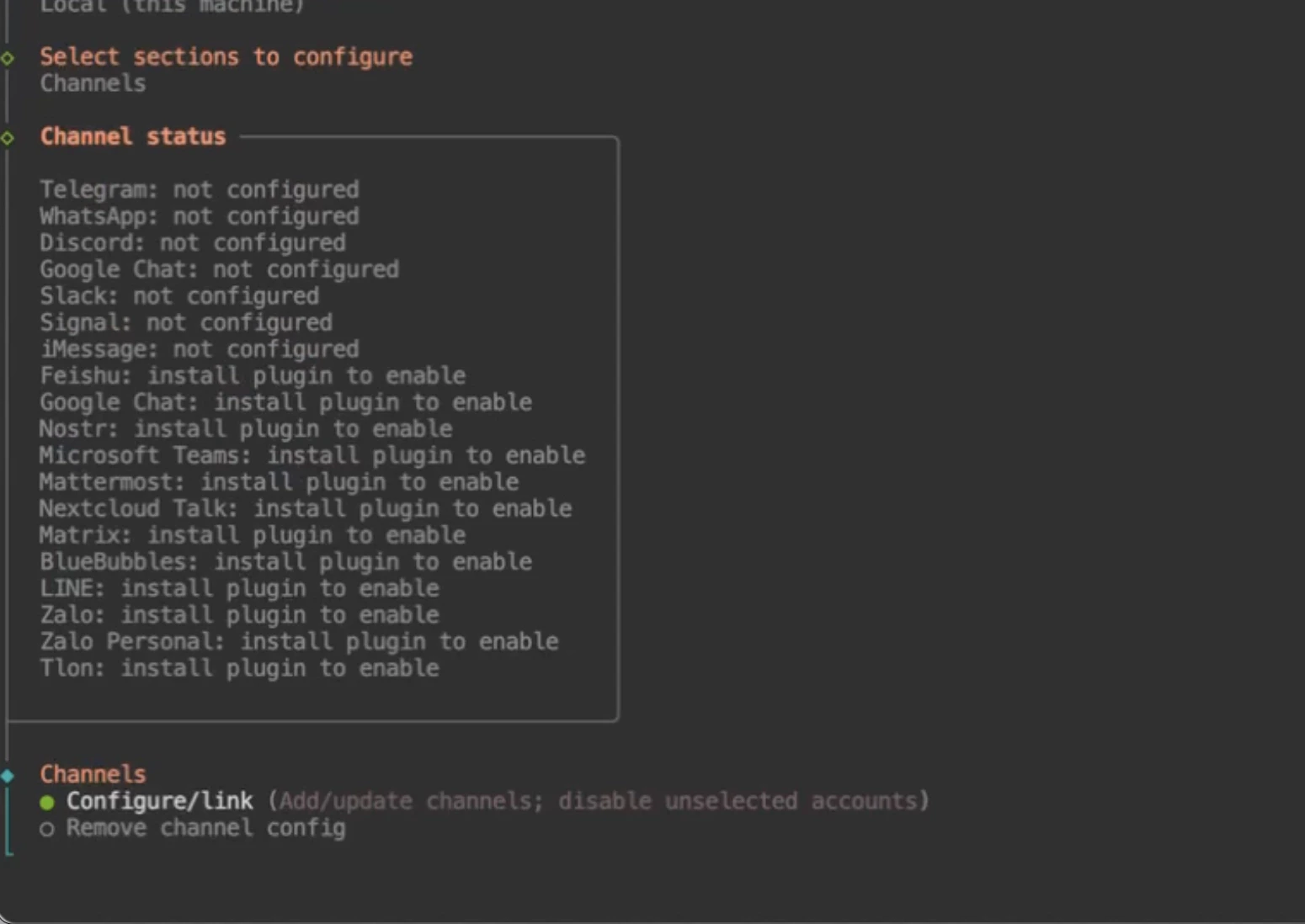
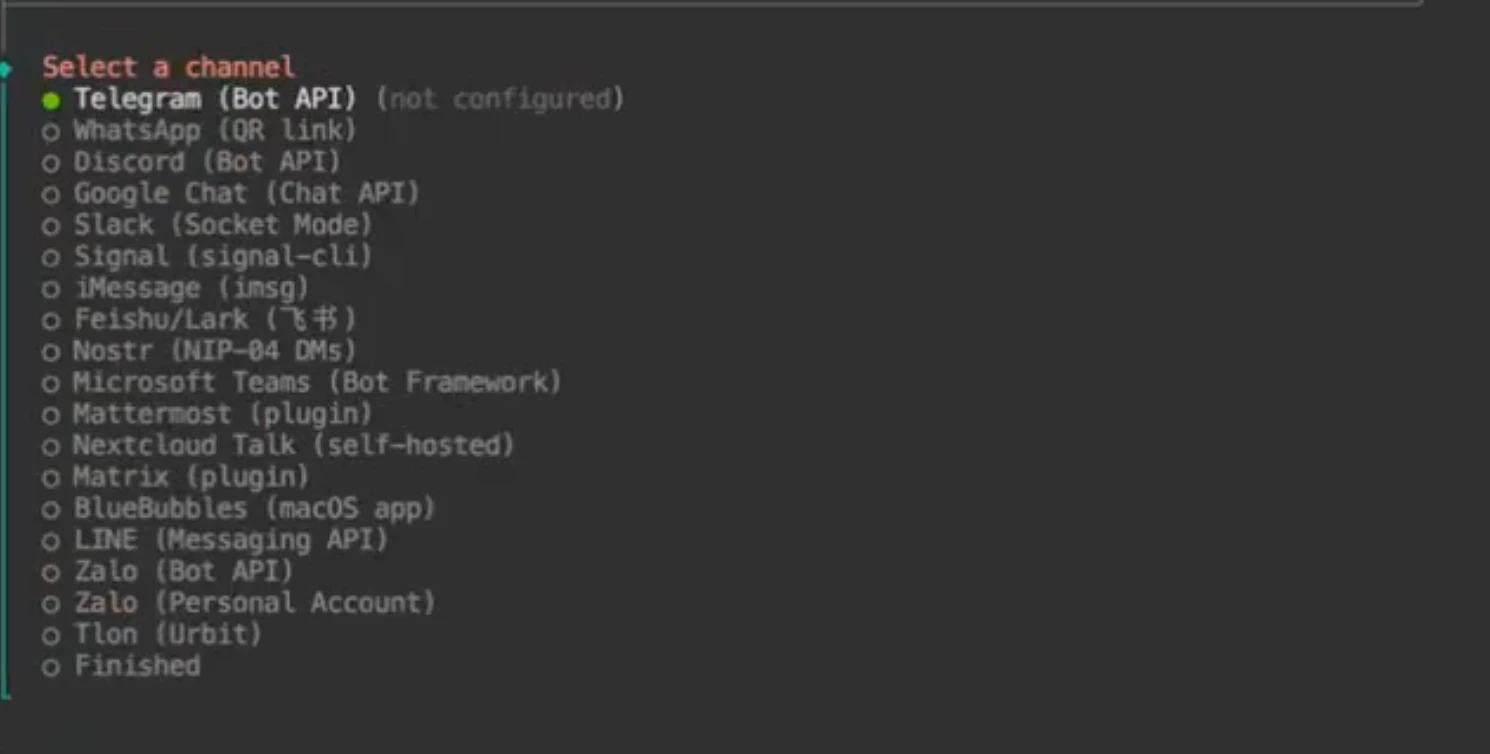
Then follow the prompts:
* **Where will the gateway run?** → Select `Local`
* **Select Section to Configure?** → `Channel`
* **Configure / Link**
* **Select Channel** → `Telegram`
* **Enter Telegram bot token** → Paste the token you copied
* Navigate to `Finish` → `Continue`
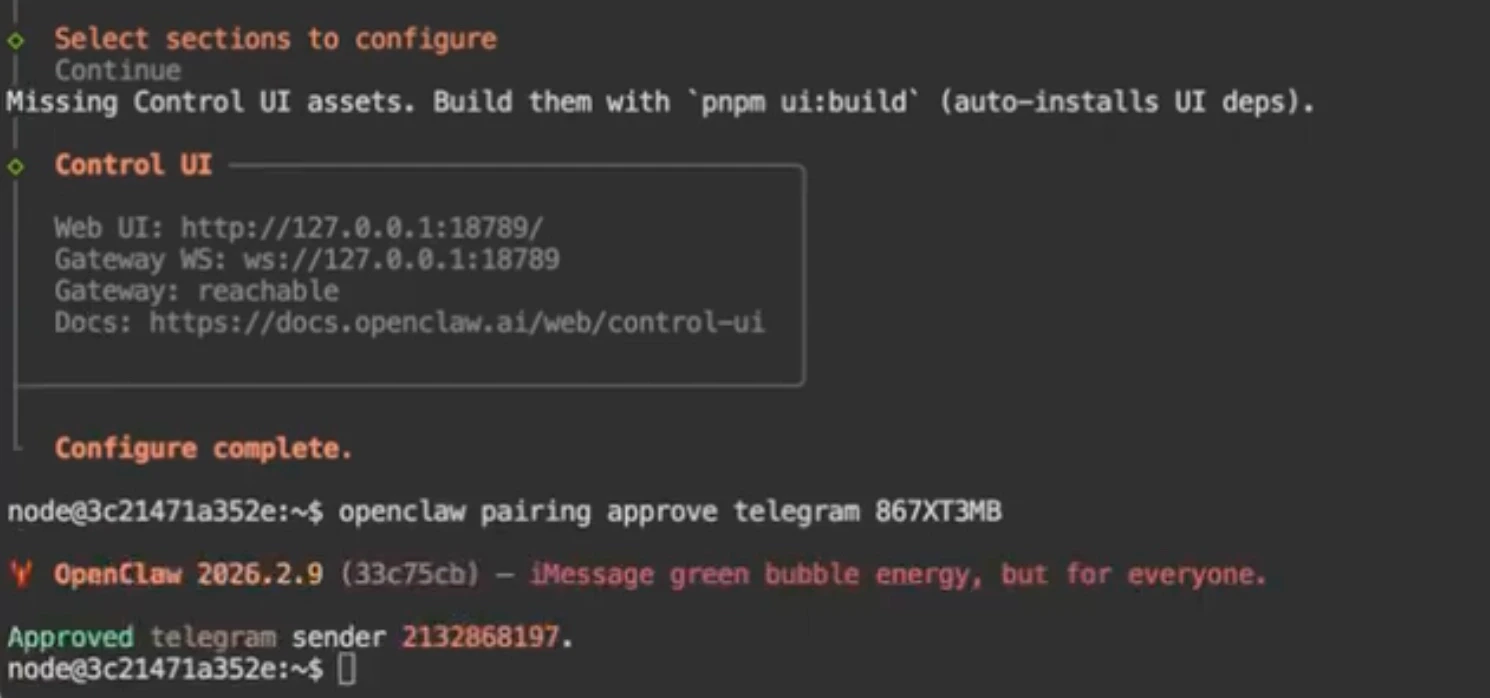
### Step 4: Pair the bot (approve pairing code)
In Telegram, open your bot and send `/start`.
When Telegram shows a pairing code, run this in the instance terminal:
```text theme={null}
openclaw pairing approve telegram
```


### Step 5: Restart and test

1. Start/restart your OpenClaw service so the bot connection becomes active.
2. Send a message to your bot to confirm it responds.

You have successfully connected a **Telegram bot with OpenClaw**.
 ### Step 5: Restart and test
1. Start/restart your OpenClaw service so the bot connection becomes active.
2. Send a message to your bot to confirm it responds.
You have successfully connected a **Telegram bot with OpenClaw**.
### Step 5: Restart and test
1. Start/restart your OpenClaw service so the bot connection becomes active.
2. Send a message to your bot to confirm it responds.
You have successfully connected a **Telegram bot with OpenClaw**.
 ### Step 2: Open the Agent37 Terminal
1. Go to the Agent37 dashboard: [https://www.agent37.com/dashboard](https://www.agent37.com/dashboard)
2. Create an instance (or open an existing one).
3. Open **Terminal**.
### Step 3: Configure OpenClaw to use Telegram
Run:
```text theme={null}
openclaw configure
```
Then follow the prompts:
* **Where will the gateway run?** → Select `Local`
* **Select Section to Configure?** → `Channel`
* **Configure / Link**
* **Select Channel** → `Telegram`
* **Enter Telegram bot token** → Paste the token you copied
* Navigate to `Finish` → `Continue`
### Step 2: Open the Agent37 Terminal
1. Go to the Agent37 dashboard: [https://www.agent37.com/dashboard](https://www.agent37.com/dashboard)
2. Create an instance (or open an existing one).
3. Open **Terminal**.
### Step 3: Configure OpenClaw to use Telegram
Run:
```text theme={null}
openclaw configure
```
Then follow the prompts:
* **Where will the gateway run?** → Select `Local`
* **Select Section to Configure?** → `Channel`
* **Configure / Link**
* **Select Channel** → `Telegram`
* **Enter Telegram bot token** → Paste the token you copied
* Navigate to `Finish` → `Continue`
 ### Step 4: Pair the bot (approve pairing code)
In Telegram, open your bot and send `/start`.
### Step 4: Pair the bot (approve pairing code)
In Telegram, open your bot and send `/start`.
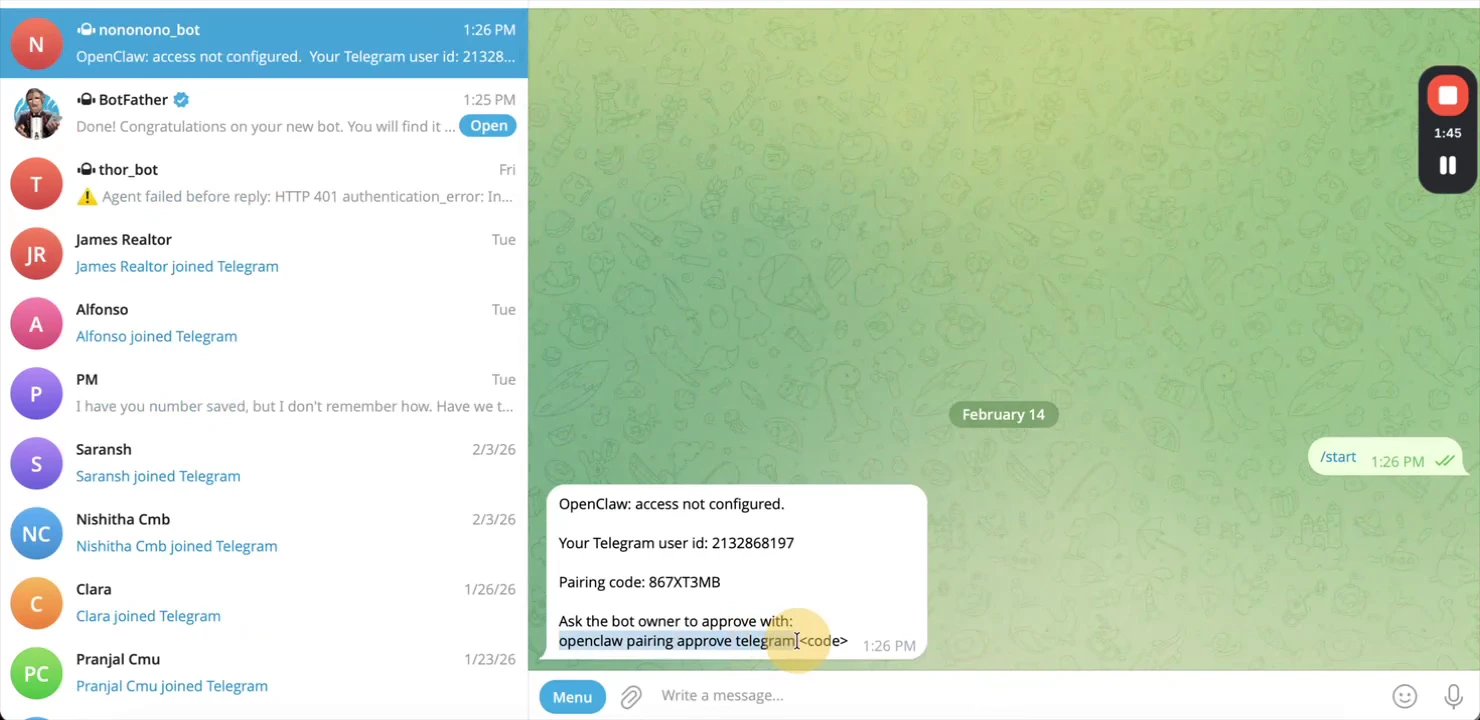 When Telegram shows a pairing code, run this in the instance terminal:
```text theme={null}
openclaw pairing approve telegram
When Telegram shows a pairing code, run this in the instance terminal:
```text theme={null}
openclaw pairing approve telegram